
How-To: Find you Computer/Device Serial Number
Below is a step‐by‐step guide with multiple methods to locate your computer’s serial number.
Apple/Mac Devices
Support.Apple.Com/How to Find Your Device Serial Number
-
Find Device Serial on printed label
Look for the serial number printed on your Mac. It’s usually on the underside, near the regulatory markings. Or look on the original product packaging.
-
Find Device Serial within MacOS/"About this Mac"
From the Apple menu in the corner of your screen, choose About This Mac. The window that opens includes the model name and serial number, as shown in the example below. You can also enter the serial number on checkcoverage.apple.com to find the model name.

System Information app
-
Press and hold the Option key on your keyboard while choosing Apple menu > System Information from the menu bar.
-
Select Hardware in the sidebar.
-
Find the serial number on the right. (To have System Information read your serial number aloud, choose File > Speak Serial Number, or press Command-4.)
-
To find the specific model name, enter the serial number on checkcoverage.apple.com.

-
-
Still Having Trouble? Contact our Support Team for Assistance
Phone: 888.244.1748
Email: Support@uncomplicate.tech
Dell Devices
Dell.Com/Support How to Find your Service Tag
-
Find Device Serial on printed label
Most Dell devices have their serial number (Listed as "Service Tag") on a sticker on the top, bottom or side of the device. This is typically a 7-charecter alphanumeric code.
-
Automatically Detect Device Info/Serial using Dell's Support Site
- Navigate to Dell.com/Device Information
- You will be prompted to allow dell to access your device; click 'allow'
- If successful, the support page will detect your device info and display your serial number/service tag. If unsuccessful, it will provide additional steps for identifying this information.
-
Find your Serial Number via Windows Command Line
- Open a Command Prompt
- Hit Windows Key + R
- Enter cmd in the run window and press OK
- In the command window, type WMIC Bios get serialnumber and press Enter
"
- Open a Command Prompt
-
Still Having Trouble? Contact our Support Team for Assistance
Phone: 888.244.1748
Email: Support@uncomplicate.tech
Lenovo Devices
.Support.Lenovo.com/Support How to Find your Serial Number
-
Find Device Serial on printed label
The serial number is usually printed on the label on the side or back of the product, after SN or S/N or Serial Number.
-
Automatically Detect Device Info/Serial using Lenovo Support Bridge
- Navigate to Support.lenovo.com/ServiceBridge
- Click Detect Device
- If prompted, click Allow to authorize Lenovo to access system informaiton
- Accept the terms and click Continue
- Click Open to proceed with Service Bridge
- Your serial number will be displayed with your system information
-
Find your Serial Number via Windows Command Line
- Open a Command Prompt
- Hit Windows Key + R
- Enter cmd in the run window and press OK
- In the command window, type WMIC Bios get serialnumber and press Enter
"
- Open a Command Prompt
-
Still Having Trouble? Contact our Support Team for Assistance
Phone: 888.244.1748
Email: Support@uncomplicate.tech
HP Devices
Support.HP.Com/How to find Serial Numbers-
Find Device Serial on printed label
Locate HP laptop computer product, model, and serial numbers on the label typically located on the top, bottom, or side of the device. In some instances this may be on the removable laptop battery.
-
Find your computer name, product number, and serial number with HP Support Assistant.
- In Windows, search for and open HP Support Assistant, or click the app icon
in the taskbar.If the app is not installed on your computer, go to HP Support Assistant to download the latest version.
- On the My Dashboard tab, locate the computer product name, product number, and serial number.
- In Windows, search for and open HP Support Assistant, or click the app icon
-
Find product and serial numbers with the HP System Information app
- Search Windows for and open HP System Information, or press Fn + esc to open the System Information window.
The keyboard press method does not work when using a docking station with an external keyboard.Note:
-
Locate the product name, product number, and serial number in the window.
- Search Windows for and open HP System Information, or press Fn + esc to open the System Information window.
-
Find your Serial Number via Windows Command Line
- Open a Command Prompt
- Hit Windows Key + R
- Enter cmd in the run window and press OK
- In the command window, type WMIC Bios get serialnumber and press Enter
"
- Open a Command Prompt
-
Still Having Trouble? Contact our Support Team for Assistance
Phone: 888.244.1748
Email: Support@uncomplicate.tech
Microsoft Device
Support.microsoft.com/How to find Device Serial Numbers
-
Find Device Serial on printed labelLook on the back or bottom of your Surface device for the serial number. It’s often listed alongside the model and storage information. If multiple groups of characters are shown, the serial number is usually the last group.
Example:
-
Find the Serial Number in the Surface App
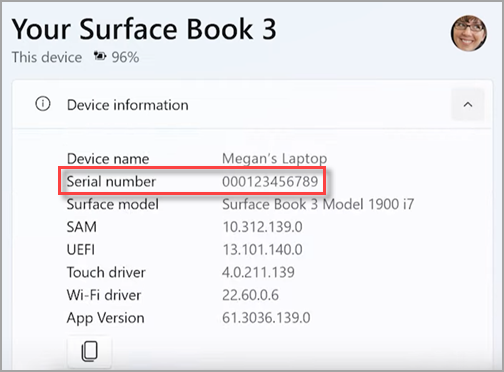
Find your serial number is in the Surface app. It shows the serial number for your Surface device and for each Surface accessory.
-
Select Start , search for surface, then select the app from the list of results.Open the Surface app
Note: If you don't see the Surface app in the search results, you might need to download the Surface app from the Microsoft Store.
-
Expand Device information and look at the value next to Serial number.
-
-
Find the Serial Number in Windows Settings
On devices running Windows 11 or Windows 10, you can locate the serial number in Settings:
-
Right-click (or long-press) Start , then select Settings > System (Alternatively you may need to type System in the search bar)
-
On this page, find Windows Specifications, and look for your Serial number.
-
-
Find your Serial Number via Windows Command Line
- Open a Command Prompt
- Hit Windows Key + R
- Enter cmd in the run window and press OK
- In the command window, type WMIC Bios get serialnumber and press Enter
"
- Open a Command Prompt
-
Still Having Trouble? Contact our Support Team for Assistance
Phone: 888.244.1748
Email: Support@uncomplicate.tech
Other Windows Devices
-
Find the Serial Number in Windows Settings
On devices running Windows 11 or Windows 10, you can locate the serial number in Settings:
-
Right-click (or long-press) Start , then select Settings > System (Alternatively you may need to type System in the search bar)
-
On this page, find Windows Specifications, and look for your Serial number.
-
-
Find your Serial Number via Windows Command Line
- Open a Command Prompt
- Hit Windows Key + R
- Enter cmd in the run window and press OK
- In the command window, type WMIC Bios get serialnumber and press Enter
"
- Open a Command Prompt
-
Still Having Trouble? Contact our Support Team for Assistance
Phone: 888.244.1748
Email: Support@uncomplicate.tech